
Orders and badges
TrustOrder shows its result on every checked order, and it learns from the order statuses you set after delivery. The Help page in the TrustOrder admin explains the same things with a sample orders list.
The COD check column
Section titled “The COD check column”The last column of WooCommerce → Orders is COD check. Every checked order gets a badge about the buyer.
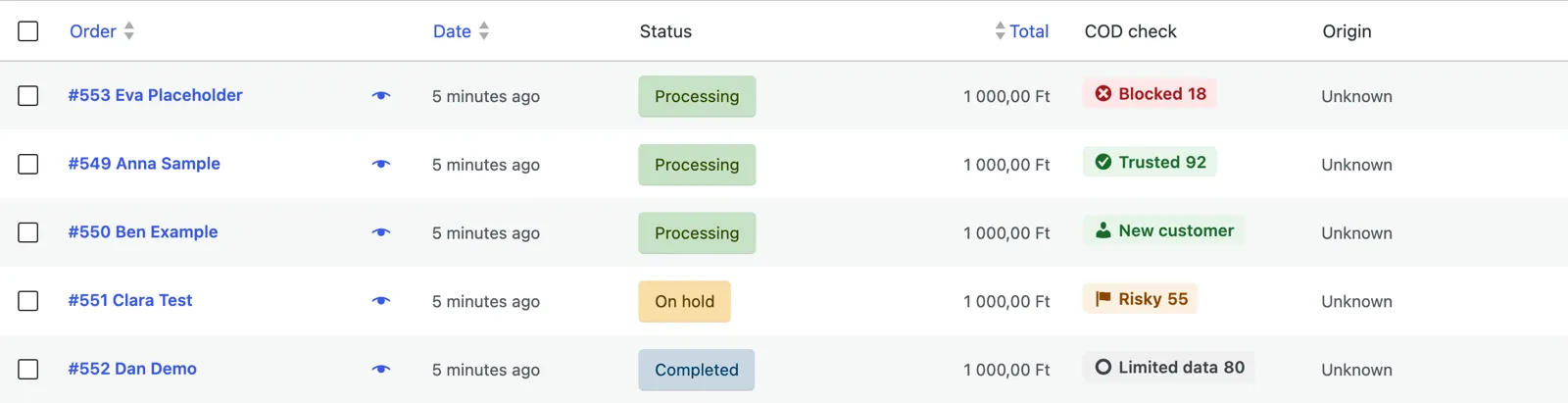
Without an API key the column is hidden, and the orders list shows a warning with a link to the API key setting instead. In Silent mode the column is hidden too.
What the badges mean
Section titled “What the badges mean”The number next to the badge is the buyer’s score, from 0 to 100: the higher, the more reliable. A new customer starts at 75.
| Badge | Meaning |
|---|---|
| New customer | No shop in the network has data on this buyer yet. Cash on delivery stays. |
| Limited data | Picked up 1 or 2 parcels and has not refused one recently, but that is not yet enough to be trusted. Cash on delivery stays. |
| Trusted | At least 3 picked up cash-on-delivery parcels, with no recent refusal. Cash on delivery stays. |
| Risky | In the last 12 months the buyer did not pick up at least 1 parcel, or the score is below 60, or the e-mail address is disposable or cannot receive mail. What happens depends on your strictness. |
| Blocked | Several shops reported parcels this buyer did not pick up in the last 12 months, and the score is below 60. Cash on delivery is hidden. |
| Not checked | The service could not be reached at checkout, or the daily check limit ran out. Every payment method stayed available. Look at this order yourself. |
A few more cases:
- Not checked (limit reached): a local check limit was reached for this order. See check limits.
- A dash means no check ran for the order: it was placed before TrustOrder was set up, or it was created outside the checkout.
- A badge without a number was imported from an earlier tool.
Reputation can improve
Section titled “Reputation can improve”A parcel not picked up is not a mark forever. Every picked up cash-on-delivery parcel raises the score, at any shop. With no new refusal for 12 months and a score above 60, the buyer is no longer risky; from 3 picked up parcels, trusted. The weight of old cases halves every year, and after 3 years the old case is removed from the service completely. It works the other way too: a trusted buyer can fall back if they stop picking up their parcels.
The TrustOrder box on the order page
Section titled “The TrustOrder box on the order page”On the order edit page, the TrustOrder box shows the badge and the reasons why the buyer got their level. At the bottom it shows the Check id:.
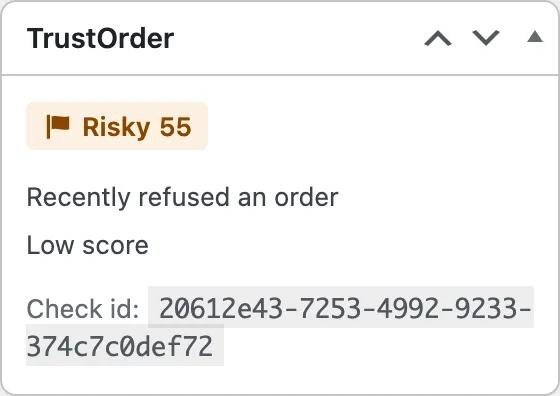
The reasons:
- First-time customer: no order data on this buyer in the network.
- Recently refused an order: a shop reported a parcel not picked up in the last 12 months.
- Refused orders at several shops: more than one shop reported parcels not picked up.
- Low score: the score is below 60.
- Disposable e-mail address: the address belongs to a throwaway e-mail service.
- E-mail domain cannot receive mail: the e-mail domain has no mail server, so the address is probably mistyped or made up.
- Allowed by your exception list: you allowed this buyer on the Exceptions page, so cash on delivery stays.
- Denied by your exception list: you denied this buyer on the Exceptions page, so cash on delivery is hidden.
If the order was not checked, the box says “This order was not checked.” If the check did not run, the box gives the reason code and says the order was accepted.
Flagged orders also get a private order note with the level, the score and the reasons.
Set the order status after delivery
Section titled “Set the order status after delivery”The report goes out from the order status. If the status is right, the network is right.
- The buyer picked up the parcel: set the order to Completed. Every completed order is reported as delivered, whatever the payment method.
- The parcel came back: set the order to Not picked up. It is reported as refused. The buyer gets no e-mail about this status.
- You made a mistake: set the order back to processing, on hold or pending payment. TrustOrder withdraws its report.
Refunds, cancellations and deletions:
- A full refund (status refunded) after Completed withdraws the delivered report. This applies to orders refunded from version 1.0.2 on; earlier refunds are not withdrawn.
- A refused report is never withdrawn by a refund.
- Partial refunds change nothing.
- Cancelled and failed orders change nothing, and deleting an order keeps its report.
Only hashes are sent. The reports go out in the background, one job per order. When the service is busy or unreachable, the plugin retries after 1, 5, 30 and 120 minutes, then marks the report as failed.
Mark several orders at once
Section titled “Mark several orders at once”In the orders list, select the orders and choose the bulk action Change status to not picked up.
Backfill past orders
Section titled “Backfill past orders”The Backfill page reports your completed and not picked up orders of the last 3 years (1095 days), in the background. Orders already reported are skipped, so you can run it again at any time.
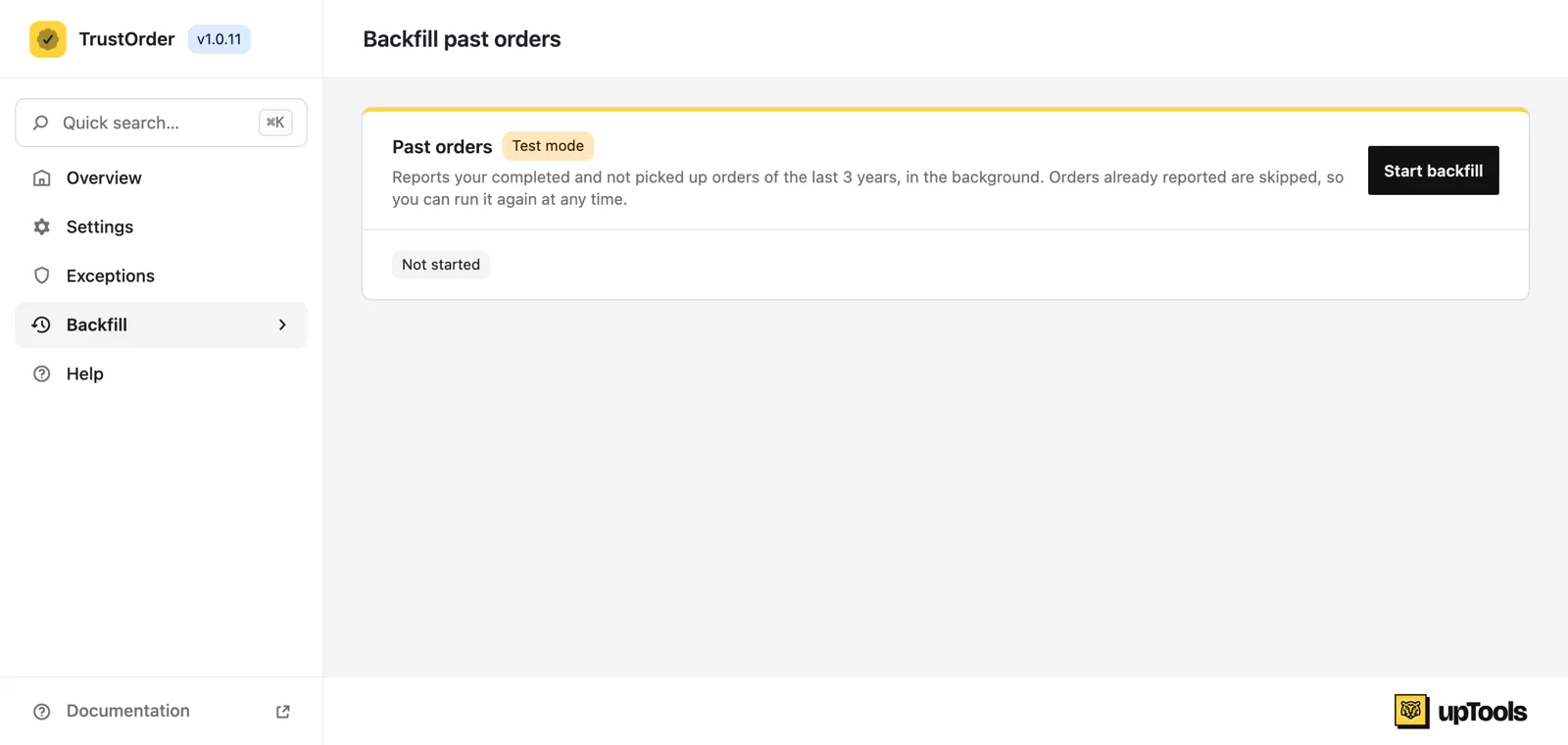
- Go to WooCommerce → TrustOrder → Backfill.
- Click Start backfill.
The page shows the state (Not started, Running, Paused or Finished) and three numbers: Processed, Reported and Failed (refused by the service, not retried).
- The backfill runs for the environment of the saved key (test or live) and keeps its progress per environment. Save an API key first.
- It sends 200 orders per page and resumes where it stopped.
- If the run paused after repeated errors (for example the service was unavailable), click Resume. It continues where it stopped.
- When it is finished, the button reads Run again.
Deactivating the plugin cancels its pending background jobs. After reactivating, start the backfill so the status changes made while the plugin was inactive are sent too.