
Exceptions
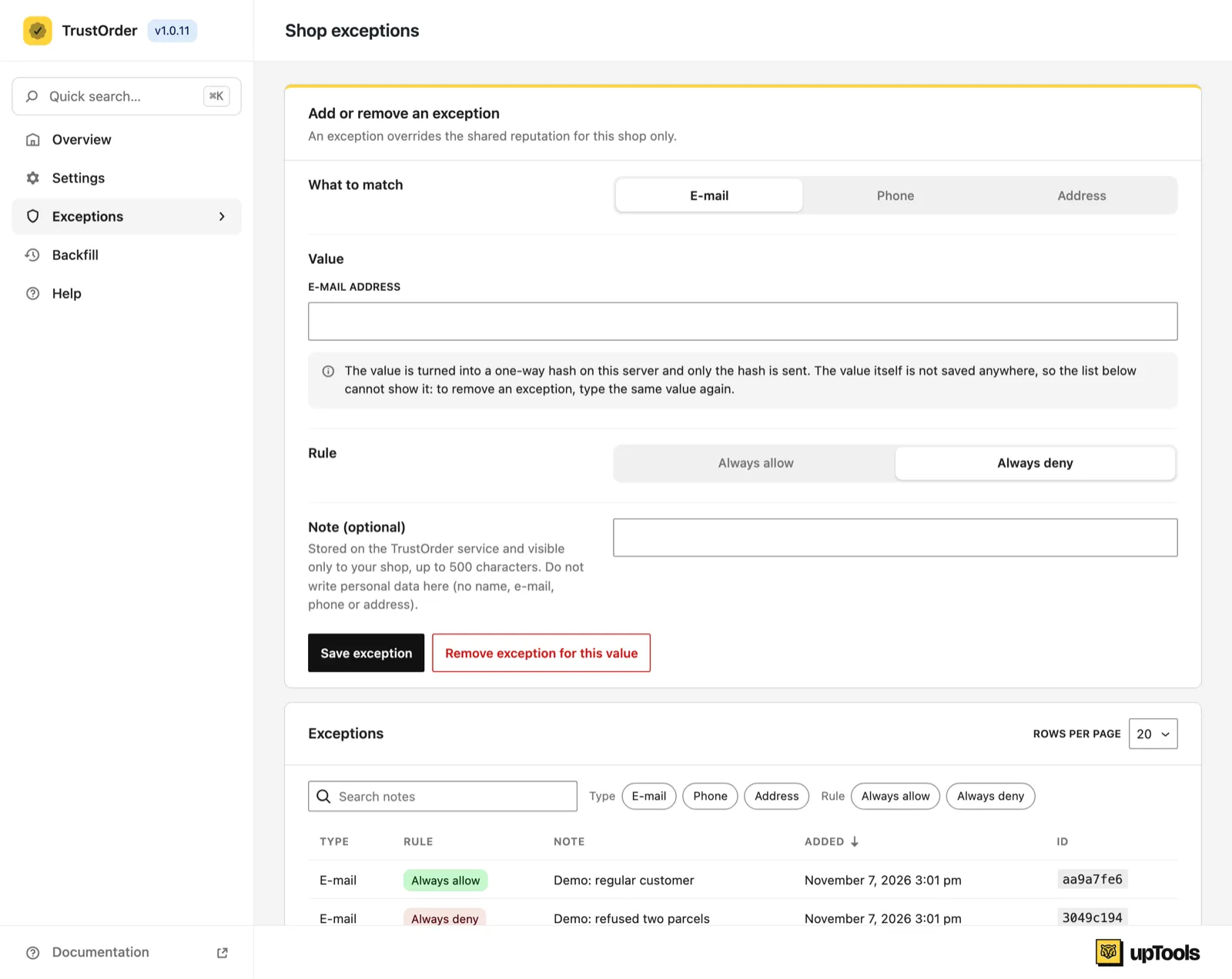
You know some buyers personally. On the Exceptions page you can always allow or always deny an e-mail address, a phone number or an address. An exception overrides the shared reputation for your shop only.
- Always allow: cash on delivery stays for this buyer. The order shows the reason Allowed by your exception list.
- Always deny: cash on delivery is hidden for this buyer. The order shows the reason Denied by your exception list.
Your data stays in the shop
Section titled “Your data stays in the shop”The value you type is turned into a one-way hash on your server, and only the hash is sent. The value itself is not saved anywhere. That is why the list cannot show it.
Add an exception
Section titled “Add an exception”- Go to WooCommerce → TrustOrder → Exceptions.
- Under What to match, choose E-mail, Phone or Address.
- Fill in the Value:
- E-mail: the E-mail address.
- Phone: the Phone number and its Country.
- Address: Country, Postcode, Street address and, if needed, Apartment, floor (optional). The address needs a country, a postcode and a house number.
- Under Rule, choose Always allow or Always deny.
- Optionally add a Note (optional). It is stored on the TrustOrder service and visible only to your shop, up to 500 characters. Do not write personal data here (no name, e-mail, phone or address).
- Click Save exception.
After you change an exception, the next check of that buyer is a fresh one.
The list
Section titled “The list”The Exceptions list shows the Type, the Rule, the Note, the date it was Added and a short ID. It never shows the value. You can filter by type and rule, and search the notes.
Remove an exception
Section titled “Remove an exception”Because the list does not know the value, you remove an exception by typing the value again:
- In Add or remove an exception, choose the same type under What to match.
- Type the same value again.
- Click Remove exception for this value.
If there is no exception for the value you typed, you see: “There is no exception for this value.”
From the command line
Section titled “From the command line”wp trustorder exceptions list, add and remove do the same. See WP-CLI.